
Chat Widget
How to Set Up and Test the Chat Widget
Step 1: Once you have a chat widget set up, you'll want to configure a Workflow Trigger to notify when a conversation is initiated via the chat widget.
To do this, the trigger event should be "Customer Replied" with a filter for "Reply Channel" set to "Chat Widget" like this:
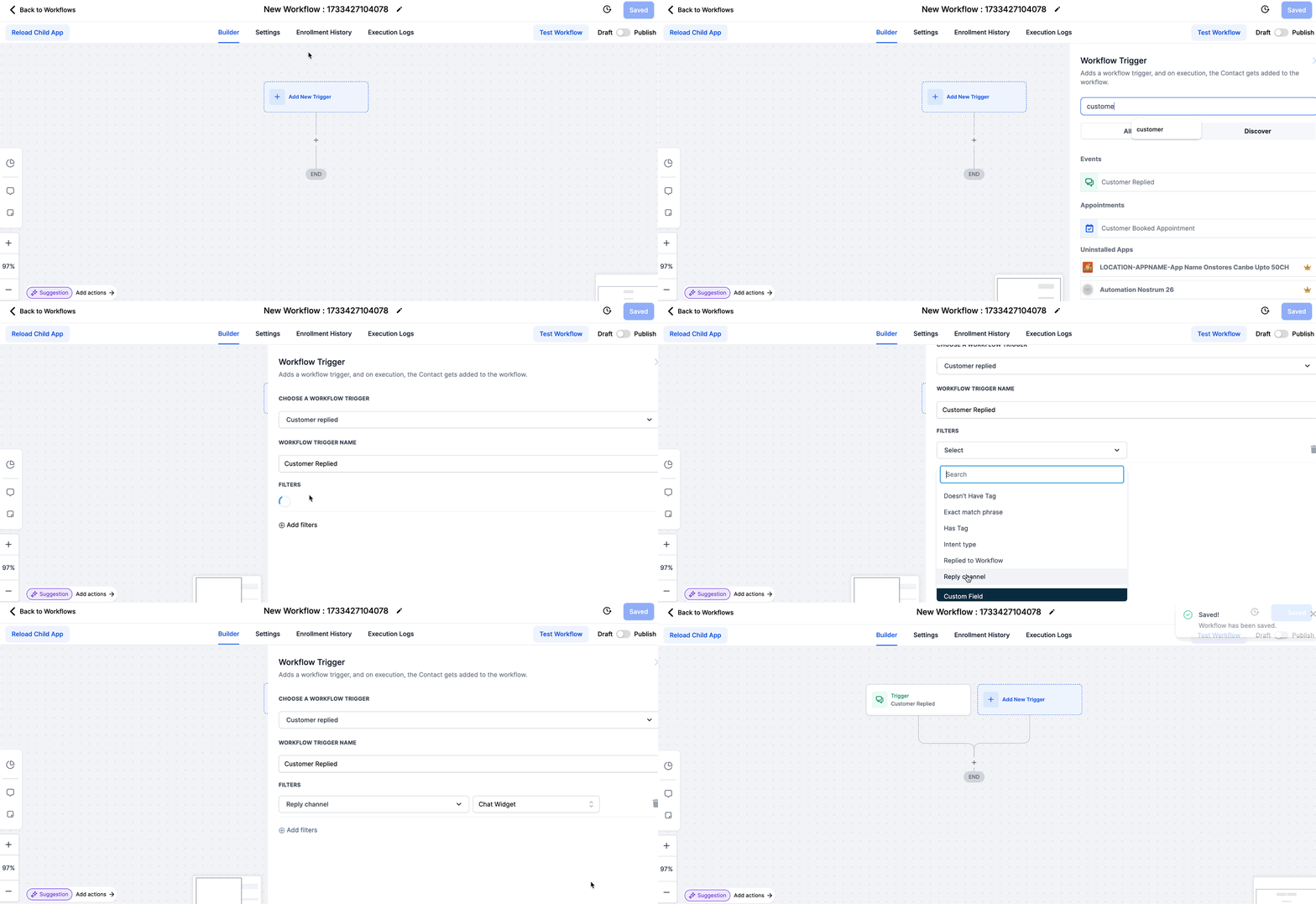
Every "Reply channel" will require its own respective trigger. For the example above we are only using "Chat Widget", if you wanted to use Google Messages you would need to setup a NEW trigger and or workflow for that specific event.Step 2: Next click the + > Search for "Internal notifications" > You can select from 2 options:
1. Email - Send email to a specific Users or custom email
2. In-app notification - Send a notification via the web app or mobile app to a specific Users or all
Quick Tip:
Use the "{{message.body}}" custom value in your notification email/text to display the message that the user entered into the chat widget.
FAQs
Can I customize my chat widget messaging per page?
The current configuration of the webchat widget does not allow for dynamic messaging. Although the widget can be used on multiple pages, the messaging will remain consistent with the initial setup.
Can I create multiple chat widgets in a sub-account?
Yes, you can create more than one chat widget per sub-account!
